How to run delta or incremental scans for web targets in Astra OrbitX
Last updated: June 4, 2025
Astra OrbitX now supports delta scans for web targets, allowing you to focus your security scans only on recently changed or newly discovered endpoints. This helps optimize scan time and ensures your most critical updates are always covered.
This guide outlines how to use automated crawling, endpoint change marking, and delta-based scanning to implement incremental security testing for your web assets.
Overview of the Workflow
Delta scanning in Astra OrbitX is powered by two capabilities:
Automated Crawling (Web)
This feature explores your web application to discover new or modified endpoints. It does not perform any security checks. You can trigger crawls manually or schedule them via the Automations tab.Full Scan with Delta Inventory Coverage
This scan mode focuses only on changed or new endpoints since the last crawl or update. It’s available under Automated Scan (Full) with Inventory Coverage set to Delta.
You can learn more about what types of changes are detected during crawling
Step 1: Keep Your Endpoint Inventory Updated
To run delta scans effectively, make sure your inventory is fresh. There are two ways to do this:
Option A: Trigger an Automated Crawl
Navigate to the Targets page in the OrbitX dashboard.
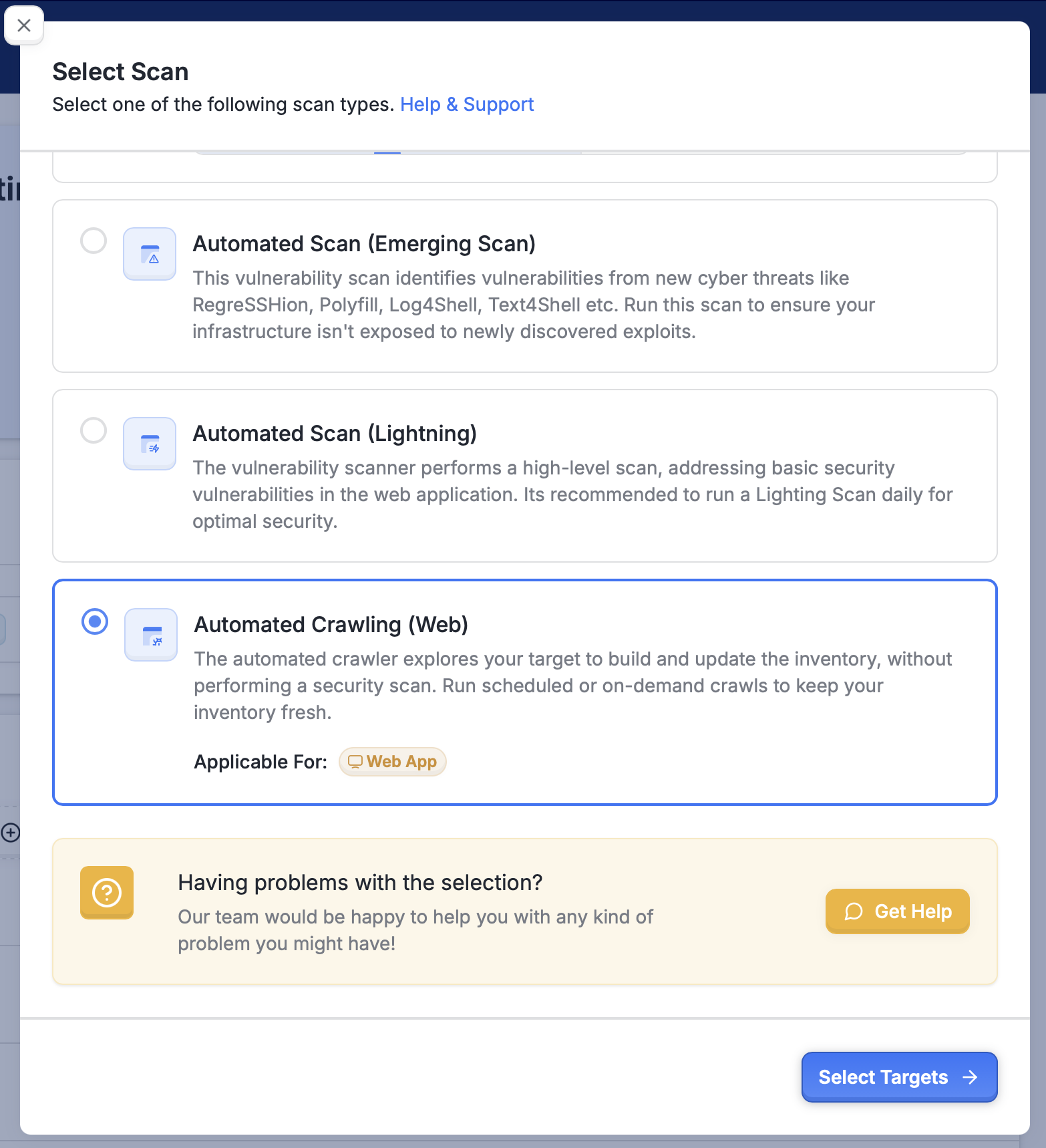
Select Automated Crawling (Web) as the scan type
Select the target and trigger the scan.
This will explore your application and update the endpoint inventory with newly discovered paths.
Option B: Schedule Crawls in Advance
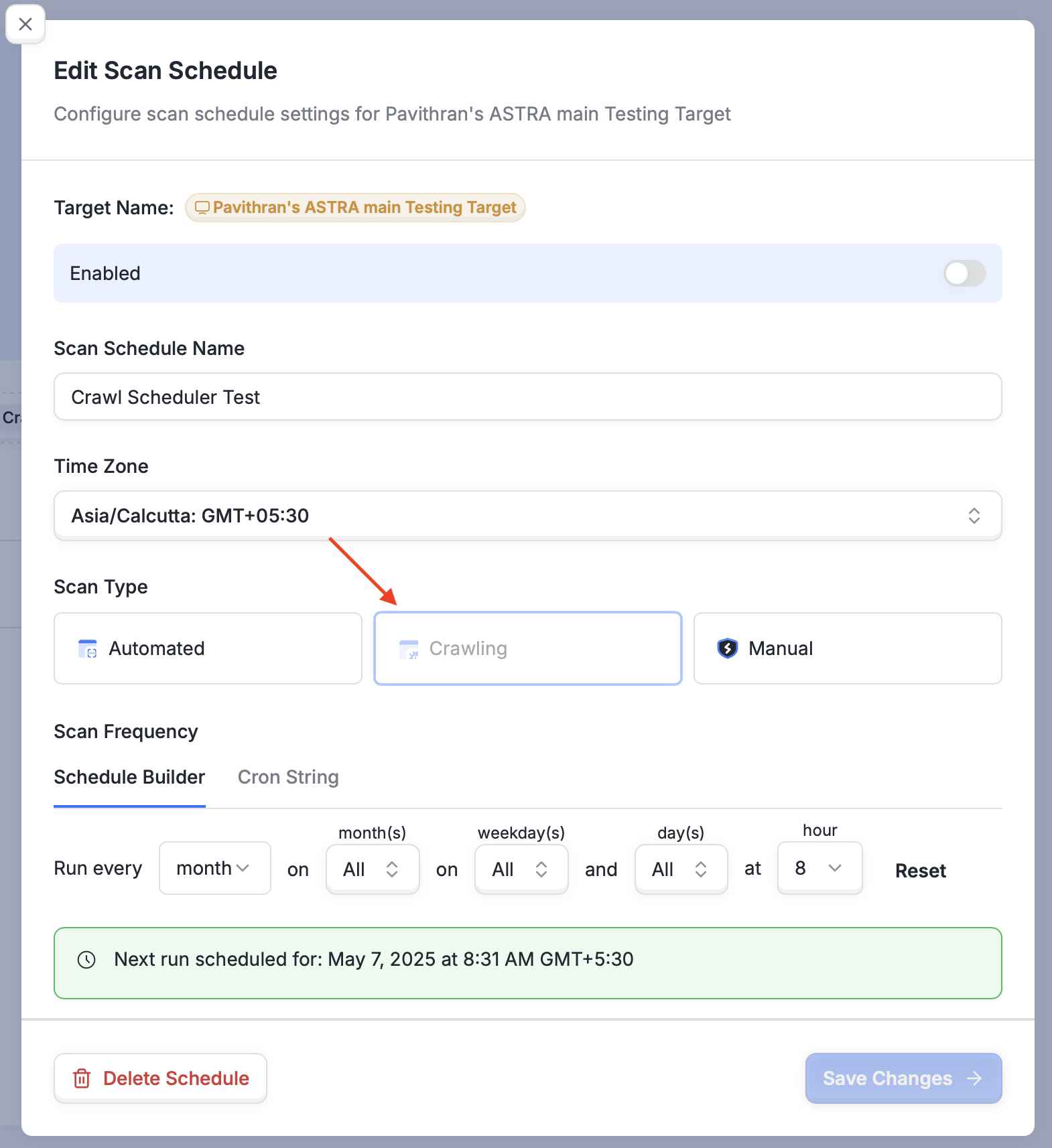
Go to the Automations tab.
Set a daily or weekly schedule for automated crawling.
This is recommended for continuously updated applications.
📄 How to schedule vulnerability scans
Step 2: Manually Flag Known Changes (Optional)
In the API & Web Endpoints section:
Review the endpoint inventory.
Use the Mark as Changed action to flag any known updates.
This is useful when you’re aware of changes that the crawler might not catch immediately.
Note: In the previous step, Astra OrbitX automatically detects most changes through the automated crawler. However, if there are specific updates that weren’t captured — such as newly deployed but less accessible routes — you can manually mark those endpoints as changed. This ensures they are included in the upcoming delta scan.

Step 3: Run a Delta-Based Security Scan
To trigger an incremental scan:
Navigate to the Targets page in the OrbitX dashboard.
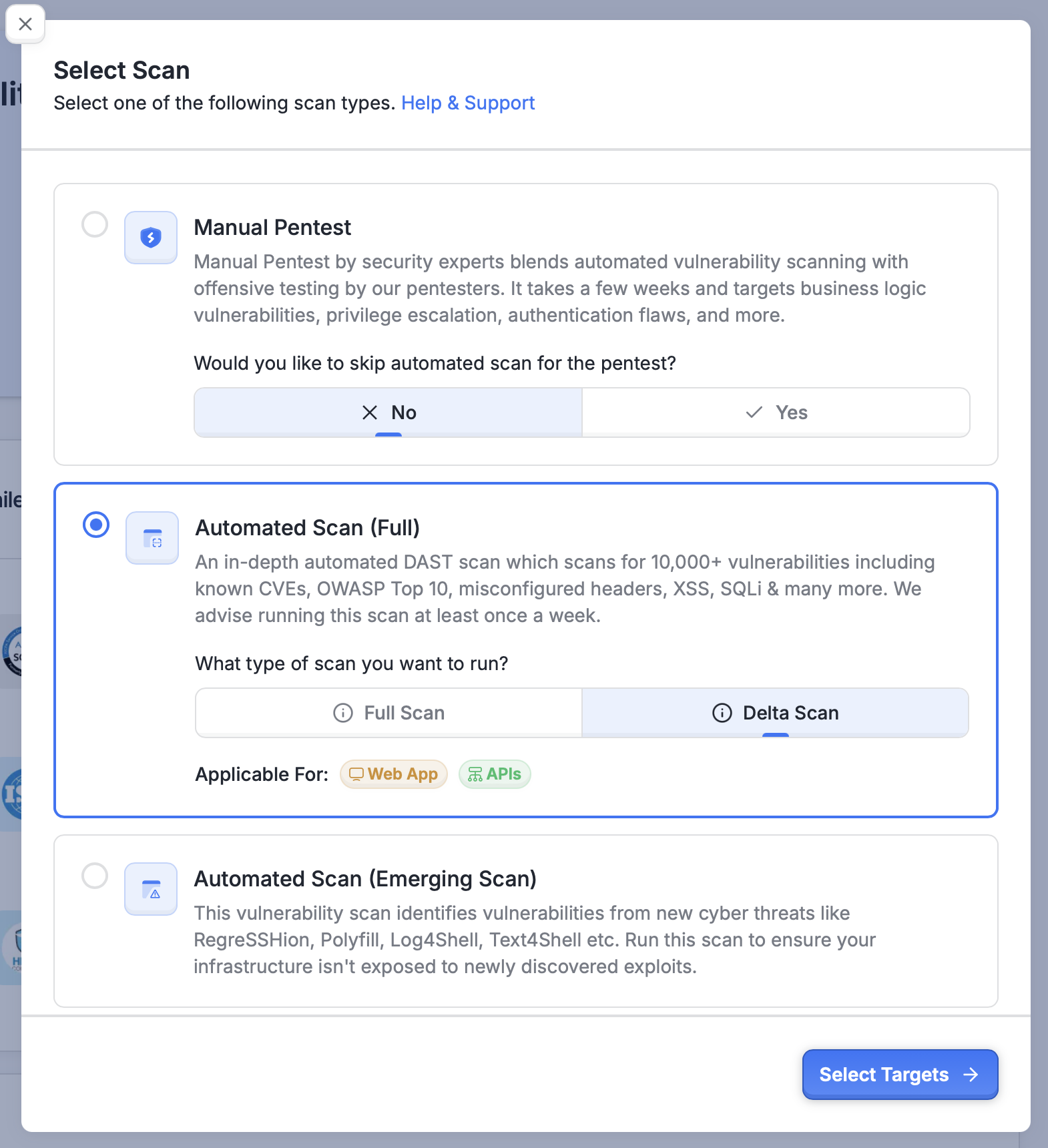
Select Automated Scan (Full) as the scan type.
Under Inventory Coverage, choose Delta.
Only endpoints marked as changed or newly discovered during the crawl will be tested.
Recommended Scheduling Strategy
Since crawling can take up to an hour, it’s best to separate crawl and scan into two scheduled tasks.
Example:
2:00 AM: Automated Crawl
4:00 AM: Delta Scan
This ensures the scan uses the most up-to-date inventory.
CI/CD Considerations
While delta scans are significantly faster than full scans, the web crawling step can take up to an hour to complete as it thoroughly explores your application to detect changes. For this reason, we do not recommend running the Web Crawling step directly within your CI/CD pipeline.
If you still wish to trigger a crawl from your CI/CD pipeline, it should be done asynchronously, without waiting for the crawl to complete. You can achieve this by setting:
ASTRA_JOB_EXIT_STRATEGY=always_passThis ensures your pipeline completes without delay while the crawl continues in the background. Once the crawl finishes and changes are detected, you can run a delta scan (which is CI/CD-friendly) to scan only the modified endpoints.
Instead:
Use scheduled automation.
Or trigger delta scans manually post-deployment.
Summary
Step | Description | Tool |
1 | Crawl the app to detect changes | Manual Crawl or Automations |
2 | Optionally mark updated endpoints | API & Web Endpoints tab |
3 | Run a delta scan | Scan Wizard → Full Scan with Delta coverage |