How to Generate a HAR File
Last updated: March 26, 2026
Overview
A HAR (HTTP Archive) file records all network activity between your browser and a web application. It helps the Astra team identify issues, analyze requests and responses, and detect endpoints that may not appear during automated scans.
When is this needed?
You may be asked to generate a HAR file when:
Certain API endpoints are missing in scans
You encounter errors on the application
A feature is not working as expected
Support needs deeper visibility into browser activity
Supported Browsers
This guide covers:
Google Chrome
Mozilla Firefox
Safari
Microsoft Edge
Steps to Generate a HAR File
Google Chrome
Open Chrome and navigate to the page where the issue occurs
Click the ⋮ (three-dot menu) in the top-right corner
Go to More Tools → Developer Tools
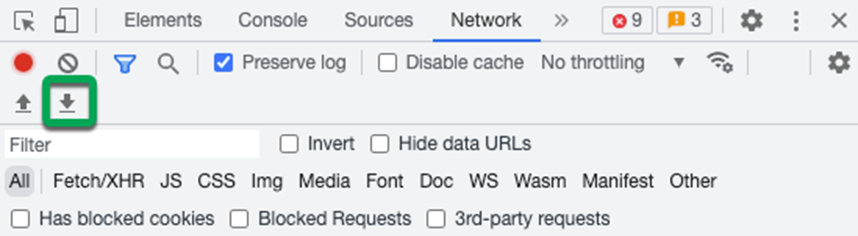
Select the Network tab

Ensure the record button (●) is red (click if not)
Enable Preserve log
Click the Clear (🗑) button to remove existing logs
Reproduce the issue while keeping the Network tab open
Click the Export HAR (download) button
Save the file as “HAR with Content”
Mozilla Firefox
Open Firefox and navigate to the page where the issue occurs
Press F12 and go to the Network tab
Reproduce the issue while requests are being recorded
Right-click anywhere under the File column
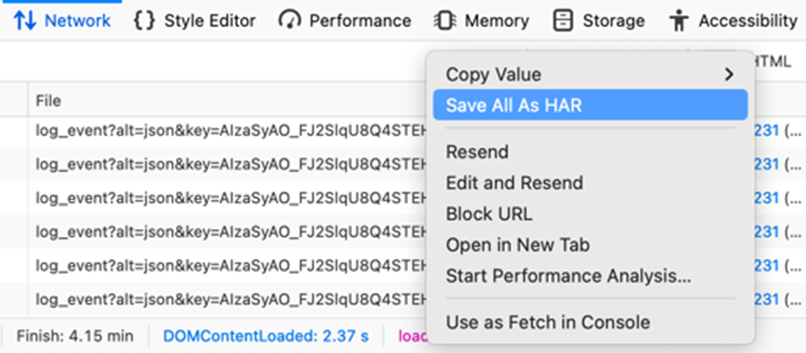
Select “Save All As HAR”
Save the file to your system
Safari
Open Safari and navigate to the page where the issue occurs
Enable the Develop menu:
Go to Safari → Settings → Advanced
Enable “Show Develop menu”
Click Develop → Show Web Inspector
Go to the Network tab
Reproduce the issue while recording is active

Click the Export icon
Save the HAR file
Microsoft Edge
Open Edge and navigate to the page where the issue occurs
Press F12 to open Developer Tools
Go to the Network tab
Ensure recording is enabled
Reproduce the issue
Click Export HAR
Save the file to your computer
Expected Outcome
You will have a HAR file containing all network activity during the session, which can be shared with the support team for further analysis.
Important Notes
Always reproduce the issue completely before exporting the HAR file
Keep the Network tab open throughout the process
HAR files may contain sensitive data such as cookies, tokens, or personal information — review before sharing
Do not modify the HAR file after exporting
Need Help?
If you are unable to generate the HAR file or face any issues, please contact the support team with details of the problem.