How to Set Up an "Others" Target
Last updated: September 22, 2025
Use this guide to set up a non-standard target such as Chrome extensions, desktop apps, Office add-ins, source code, Slack/MS Teams apps, Web3 apps, or smart contracts for your security assessment on the Astra Pentest platform.
Why This Matters
Allows testing of applications that don’t fall under typical categories like websites or APIs.
Ensures Astra can assess security across diverse platforms including blockchain, desktop, and collaboration tools.
Helps you generate accurate findings and compliance-ready reports.
What the Setup Includes
When creating an "Others" target, you will:
Provide application and business details for reporting.
Select the application type (Chrome extension, desktop app, Office add-in, source code, Slack/MS Teams app, Web3, or smart contracts).
Supply application-specific details such as URLs, source code, download links, or credentials.
Optionally provide setup instructions for desktop or integration-based apps.
How to Set Up an "Others" Target
Step 1: Access the Setup Wizard
Log in to your Astra Dashboard.
Navigate to the Targets page.
Click on Setup Target to launch the setup wizard.

Step 2: Get Started
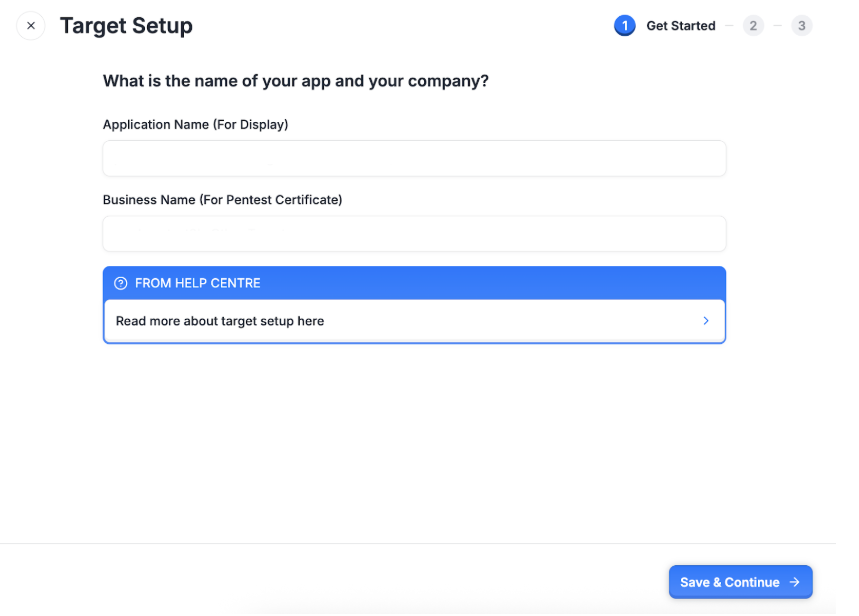
Application Name: Enter a display name for your target.
Business Name: Enter your company’s name. This will appear on your pentest certificate.
Step 3: Select Application Type
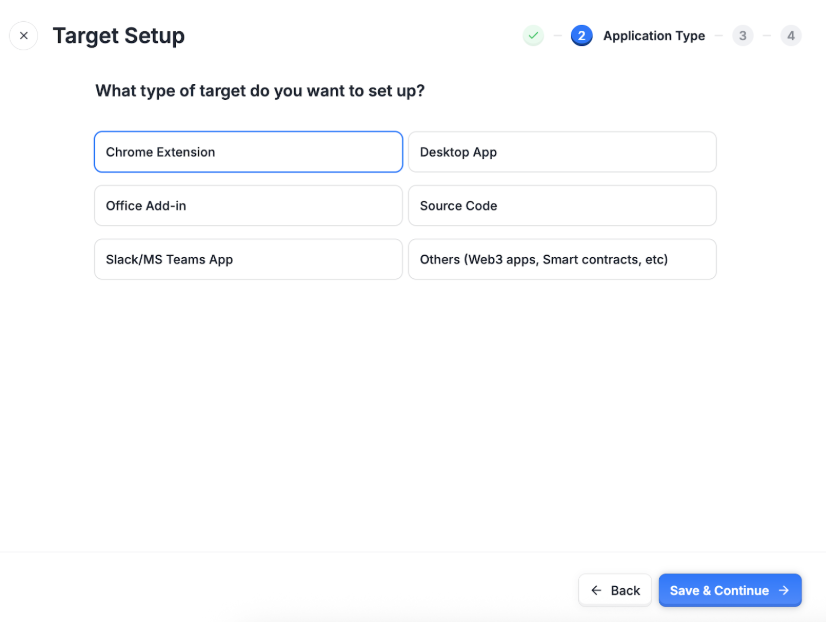
Choose what type of target you are setting up. Options include:
Chrome Extension – Browser extension or add-on for Chrome/Chromium.
Desktop App – Software installed on Windows, macOS, or Linux.
Office Add-in – Extension that integrates with Microsoft Office products.
Source Code – Raw source code of your application for static review.
Slack/MS Teams App – Bot or integration for Slack or Microsoft Teams.
Others (Web3 apps, Smart Contracts, etc.) – Blockchain-based solutions like dApps, wallets, or contracts.
Step 4: Provide Application Details
Depending on the application type selected, you’ll see different input fields:
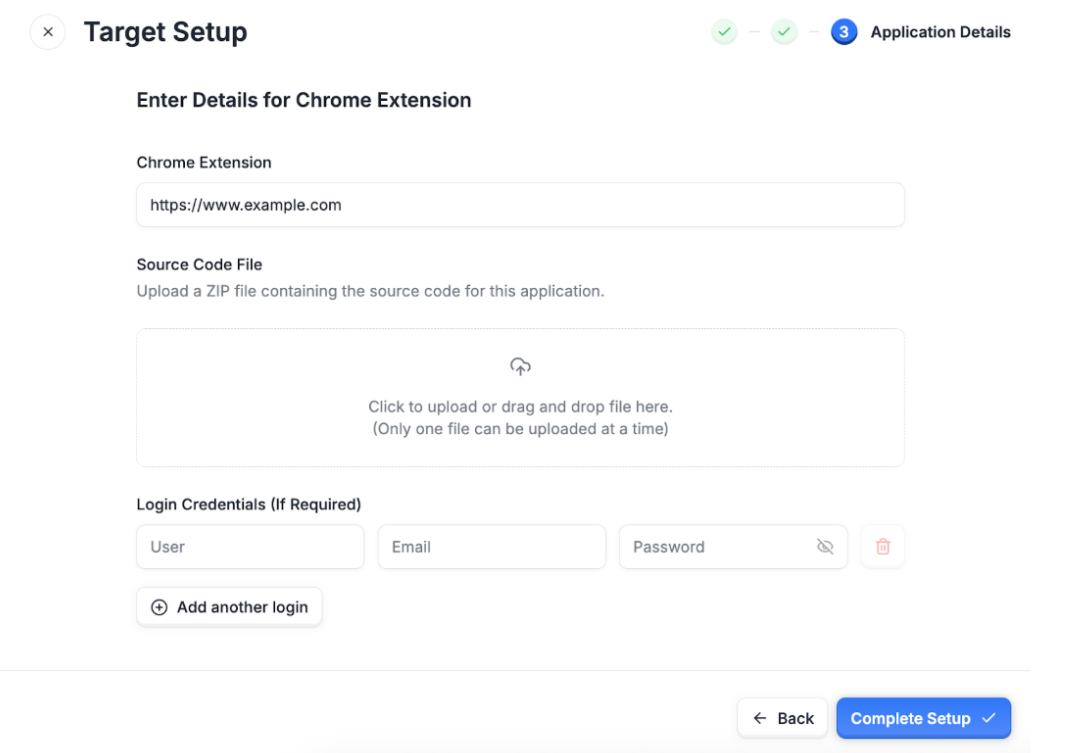
Chrome Extension
Extension URL (Web Store or hosted link)
Source Code File (ZIP upload)
Optional: Test login credentials
Click Complete Setup
Desktop App
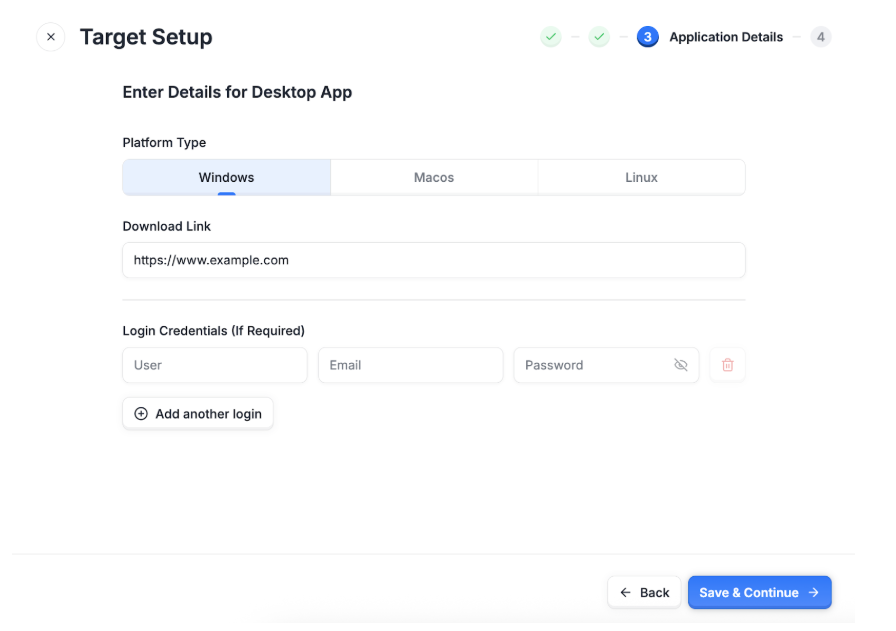
Platform (Windows/macOS/Linux)
Download link (installer or executable)
Optional: Test login credentials
Click Save & Continue
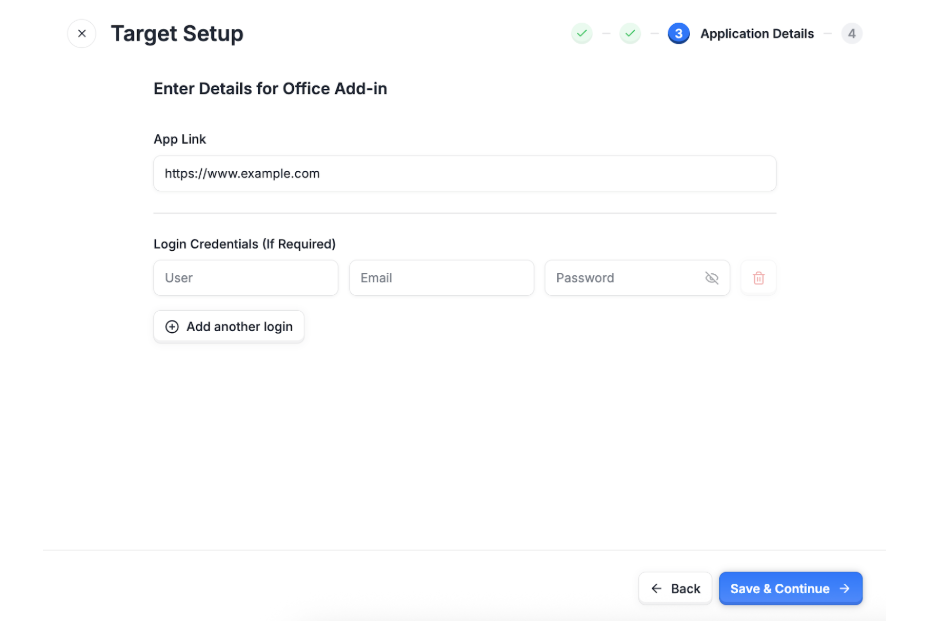
Office Add-in
Add-in URL
Optional: Test login credentials
Click Save & Continue
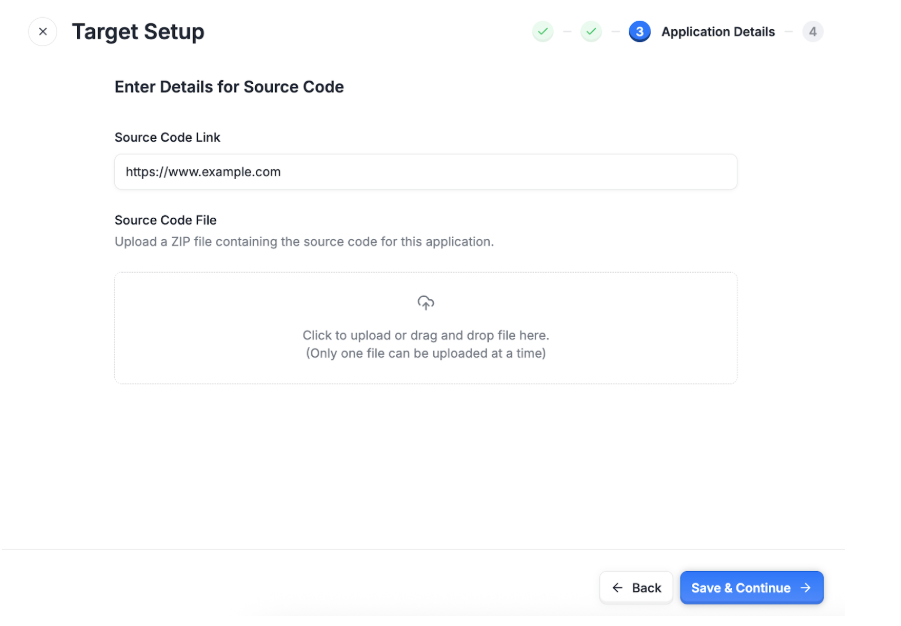
Source Code
Repository link or source code file (ZIP upload)
Click Save & Continue
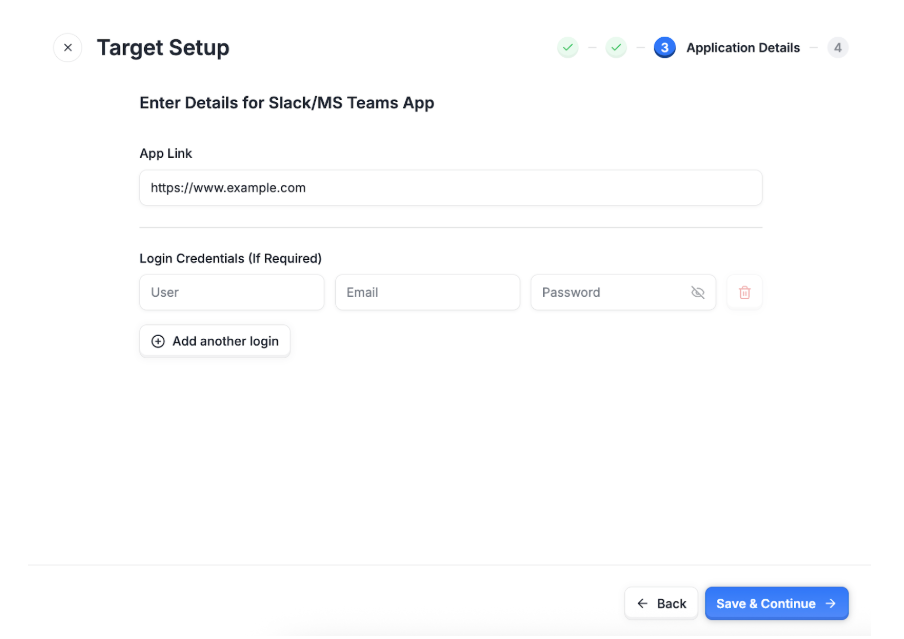
Slack/MS Teams App
App link
Optional: Test login credentials
Click Save & Continue
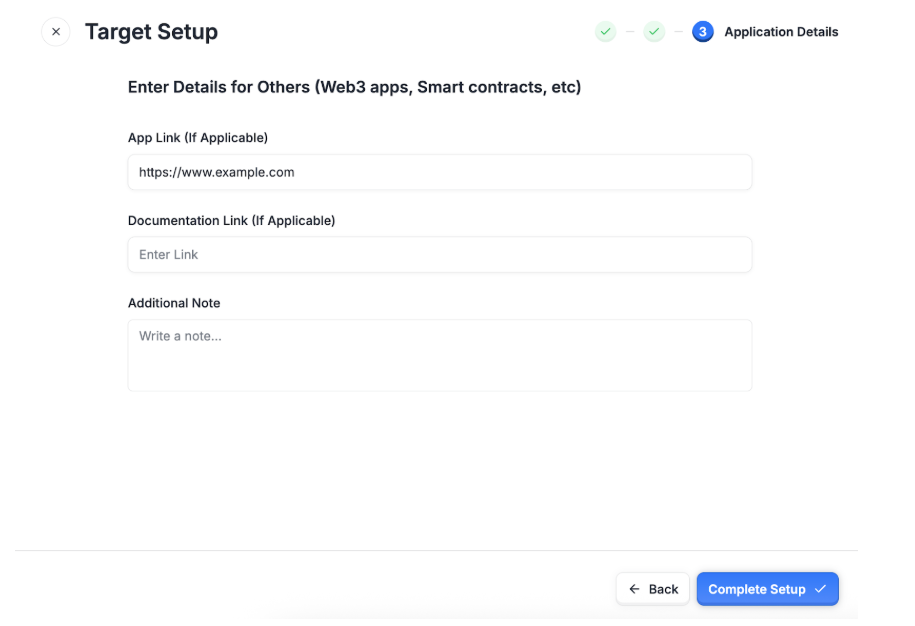
Others (Web3 apps, Smart Contracts, etc.)
App link (if applicable)
Documentation link (if applicable)
Additional notes (context, dependencies, setup instructions)
Click Complete Setup
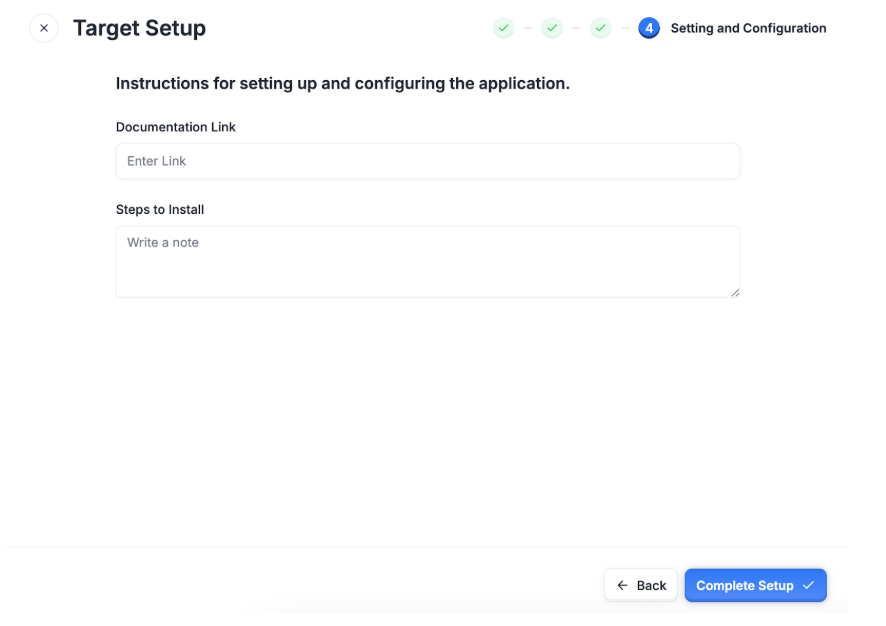
Step 5: Add Setup Instructions (Optional)
This step is required only for:
Desktop Apps
Office Add-ins
Slack/MS Teams Apps
Provide:
Documentation Link – Official or internal setup documentation.
Steps to Install – Clear, step-by-step instructions (e.g., download installer, enable permissions, configure API keys).
Once complete, click Complete Setup.
You’ve successfully set up an "Others" target. Astra will now prepare the target for your security assessment. If you need help during setup, reach out to us at help@getastra.com.