Rescanning Vulnerabilities
Last updated: September 25, 2025
Astra provides two ways to revalidate vulnerabilities after you have applied fixes:
Manual Rescans: It is performed by Astra's security team (pentesters).
Automated Rescans: It is performed instantly by Astra's automated vulnerability scanner.
Both rescans ensure that vulnerabilities you have fixed are re-tested so that they are confirmed as resolved.
Depending on the type of security assessment, the rescans you can request vary:
Pentests: You can request both Manual and Automated rescans to ensure vulnerabilities are thoroughly re-evaluated.
Scans: You can request Automated rescans only, allowing quick verification of fixes for detected issues.
Manual Rescans
Manual rescans provide a human-verified review conducted by Astra’s security team, offering the most reliable confirmation that applied fixes have been effective.
It covers both Bot-reported and Pentester-reported vulnerabilities.
Only one manual rescan can be active at a time. You must wait for the current one to finish before starting another manual rescan
Since pentesters revalidate issues manually, results may take a few working days.
Eligibility Criteria for Manual Rescan
At least 50% of critical and high severity vulnerabilities must be fixed.
A valid manual rescan quota must be available in your plan.
The request must be made within the rescan validity period.
Automated Rescans
Automated rescans are conducted instantly by Astra’s vulnerability scanner to quickly verify fixes, providing fast and reliable feedback without waiting for a manual review.
It can only revalidate Bot-reported vulnerabilities. Pentester-reported issues are not included.
Multiple automated rescans can be active at the same time, unlike manual rescans.
They start instantly and usually finish quickly, depending on the number of vulnerabilities.
Rescan Rules and Behavior
These rules prevent conflicts and ensure reliable rescan results.
1. Rescan Limits and Concurrency
Manual rescans - Only one manual rescan can be active at a time. If one is already running, you'll need to wait for it to finish before starting another.
Automated rescans - You can have multiple automated rescans running at the same time. There's no limit to how many can be active in parallel.
Manual and Automated rescans together - A manual rescan and automated rescans can run at the same time. Having one doesn't block the other.
2. Vulnerability Allocation
When a rescan is started, the vulnerabilities get included depending on their current status and other related factors. The rules are slightly different for Manual Rescans and Automated Rescans.
General Rules
Only vulnerabilities in Unsolved or Under Review are eligible to be selected.
A vulnerability can only be included in one active rescan at a time.
For active rescans (automated or manual), a vulnerability cannot be added to another rescan until the current rescan is completed, failed or cancelled.
Note: There is an exception for manual rescans: bot-reported vulnerabilities can be moved to an automated rescan. For more details, refer to “Initiating Automated Rescan for Vulnerabilities Already Included in an Active Manual Rescan”
Manual Rescans
If you do not select anything:
All vulnerabilities currently in Under Review (and not part of another active rescan) are automatically included.If you select vulnerabilities:
Manual rescans always include all eligible Under Review vulnerabilities (not part of another active rescan) even if you only selected some of them. In addition, any Unsolved vulnerabilities you selected are also included.
Note: Selecting only a subset of Under Review vulnerabilities will still result in all Under Review vulnerabilities being picked, as long as they are not already part of another rescan.
Automated Rescans
If you do not select anything:
All eligible Bot-reported Under Review vulnerabilities (not part of another active rescan) are automatically included.If you select vulnerabilities:
In Automated rescan, only the vulnerabilities you selected are included, subject to the following conditions:They must be Bot-reported (Pentester-reported issues are not eligible).
They must be in Unsolved or Under Review.
They must not already be part of another active rescan.
3. Status Restrictions During Rescans
Automated Rescan: The vulnerability status cannot be changed while it is part of an active automated rescan. Once the rescan finishes (cancelled, failed, or passed), status updates are allowed again.
Manual Rescan: The vulnerability status can be updated until the pentester has rescanned it. After that, the status remains as-is until the manual rescan finishes.
Note:
This applies only to that specific vulnerability, other vulnerabilities in the same manual rescan can still be updated if they haven’t been reviewed yet.
If you change a vulnerability’s status while it is part of an active manual rescan, that vulnerability is marked Skipped for that rescan and won’t be validated in that rescan.
Initiating Automated Rescan for Vulnerabilities Already Included in an Active Manual Rescan
You can trigger an automated rescan for bot-reported vulnerabilities even if they are currently included in an active manual rescan. The action is the same as starting any automated rescan, just select the bot issues you want and start the automated run.
Steps
Select the Bot-reported vulnerabilities you want to rescan.
Click on Rescan and then Start Automated Rescan.
Note: Once those vulnerabilities are moved to an automated rescan, they are marked Skipped in the active manual rescan and are removed from that manual rescan. Pentesters will no longer validate those moved items in that manual rescan.
Viewing Rescans
You can track and review the status of rescans directly from the Audit Details page.
Where to Find Rescans
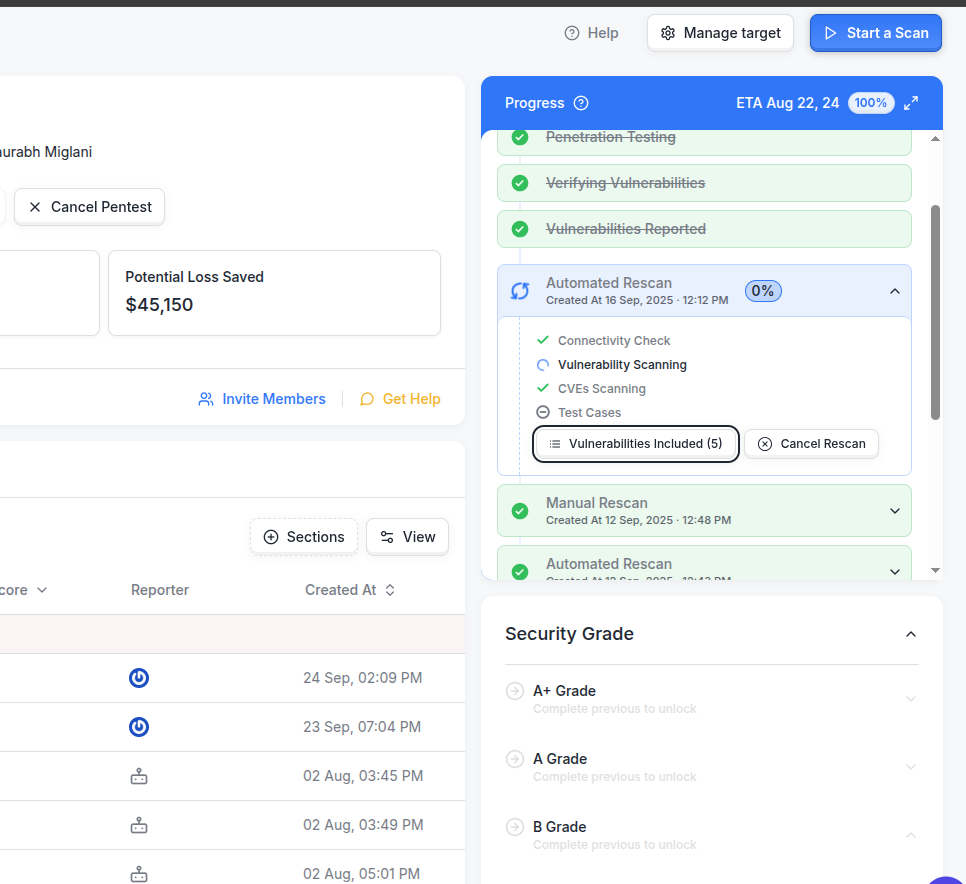
All rescans (manual and automated) appear in the Progress Section of the Audit Details page.
Each rescan is listed with its status (In Progress, Passed, Failed, or Cancelled).
Viewing Vulnerabilities in a Rescan
To see which vulnerabilities are part of a specific rescan:
Go to the Progress Section on the Audit Details page.
Select the rescan you want to review.
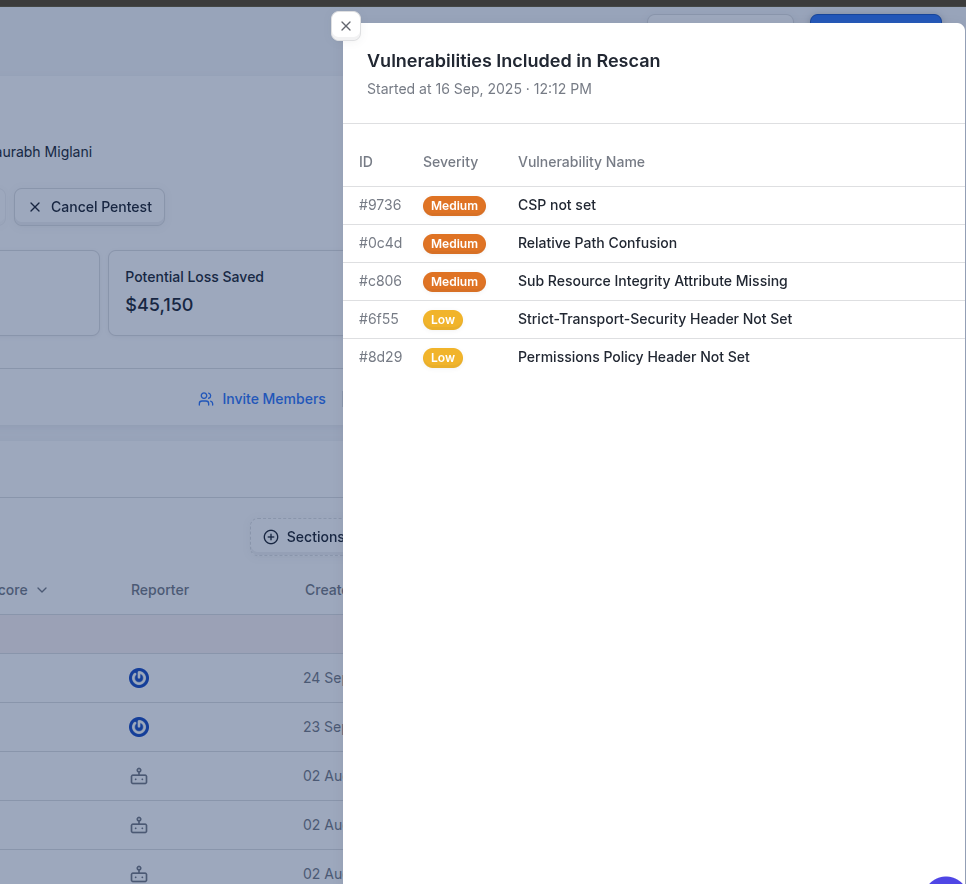
Click on the Vulnerabilities Included button.
A list of all vulnerabilities included in that rescan will be displayed.