How to Request a Rescan After Fixing the Found Vulnerabilities
Last updated: September 25, 2025
Once you've fixed the vulnerabilities identified during a manual pentest, you can request a rescan to verify the fixes. Astra's security engineers will review and validate the remediations applied by your team.
Rescan Period (Validity)
For manual rescans following a manual penetration test, you have a 30-day window from the date vulnerabilities are reported to request a rescan. After this period, the rescan request will expire and may require an additional purchase, depending on your subscription plan.
Need more time? Learn how to get an extension for your rescan deadline.
Note: This validity period applies only to manual rescans. For automated rescans, there is no fixed validity period — you can trigger automated rescans at any time, as needed.
Types of Rescan
There are two types of rescans available:
Manual Rescan – For vulnerabilities found during a manual pentest. These are verified by Astra’s security experts.
Automated Rescan – For vulnerabilities discovered via Astra’s automated scanner.
See more details on automated rescans here
How to Request a Manual Rescan
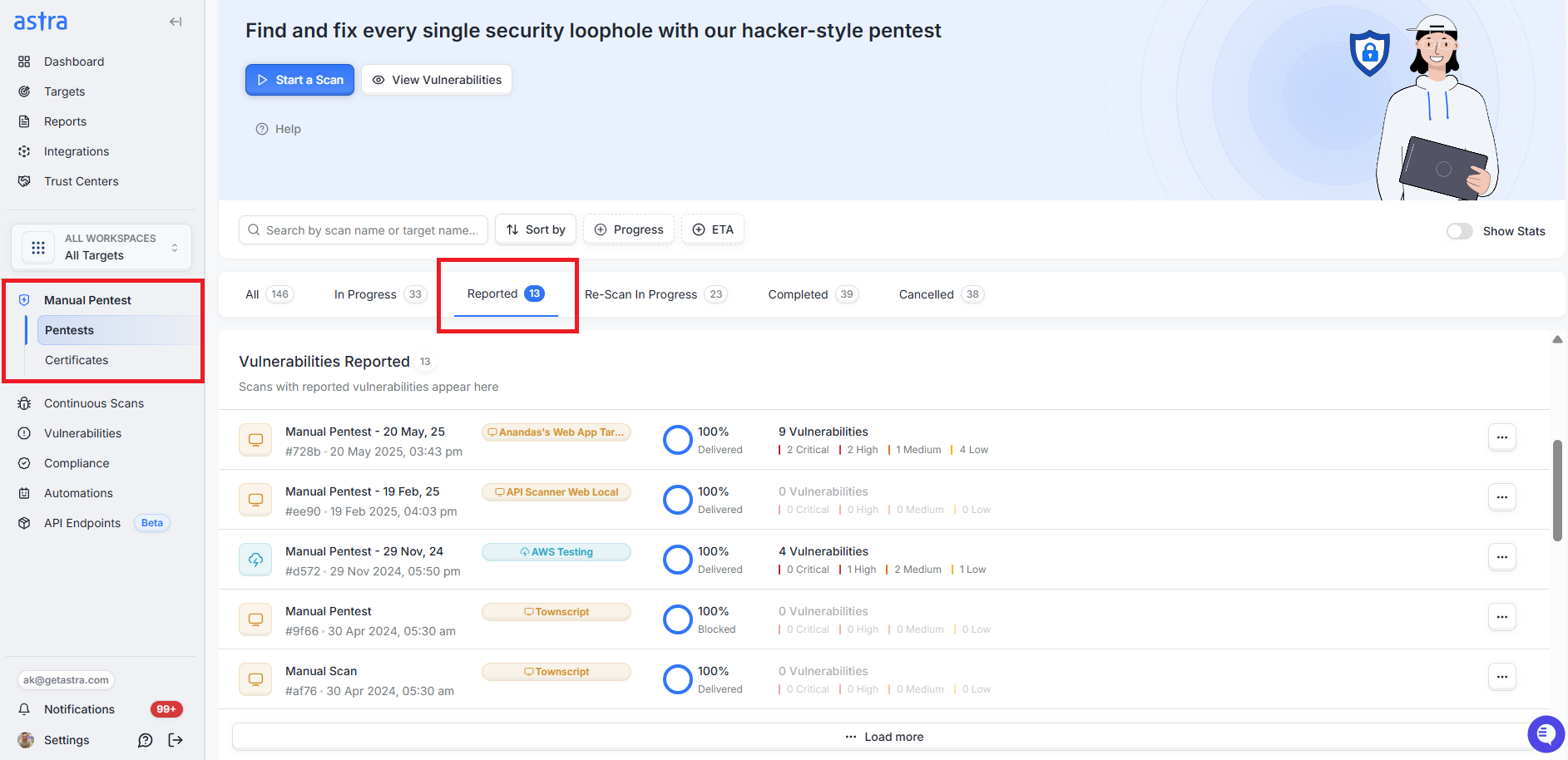
1. Navigate to the Manual Pentest Section
Log in to your Astra dashboard.
Go to the Manual Pentest section.
Use the Go to Section option on the left to quickly access the Pentest List.
2. Select the Relevant Scan
Click the Reported tab in the table.
Select the scan you wish to request a rescan for.
3. Click on the Rescan Button
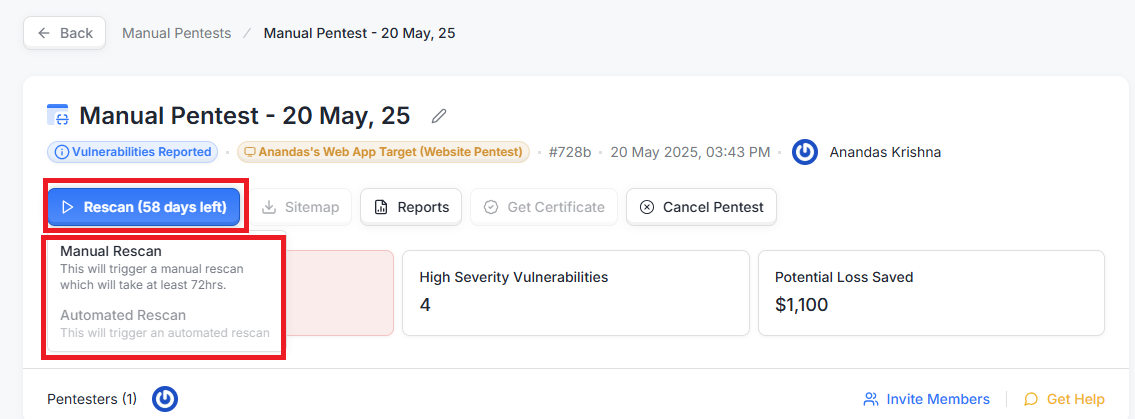
Click the RE-SCAN button for the selected pentest.
Choose one of the following options:
Manual Rescan – For manually reported vulnerabilities.
Automated Rescan – For findings from automated scans.
4. Review the Rescan Panel
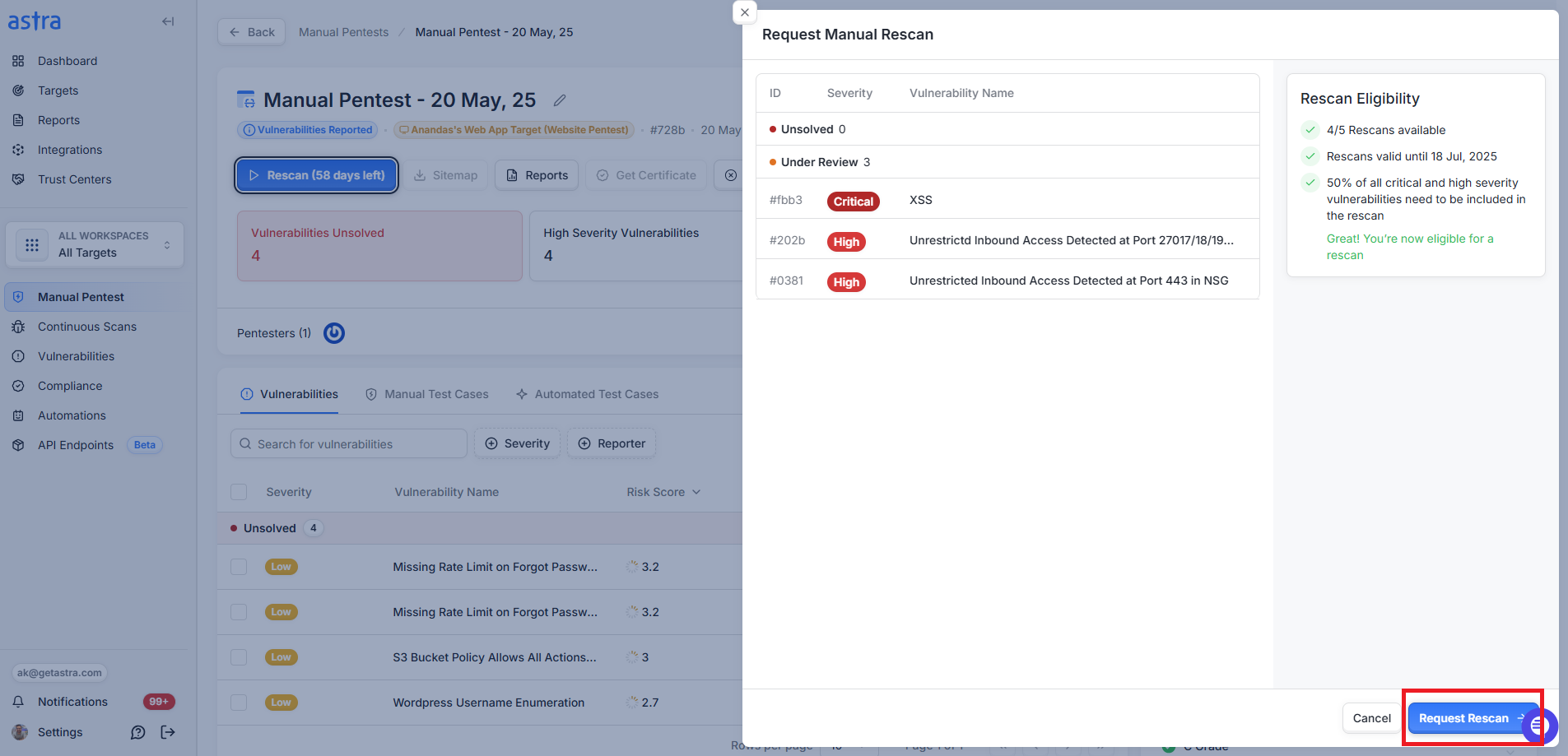
A side panel will appear showing:
Vulnerabilities included in the rescan
Rescan eligibility details:
Number of rescans remaining
Rescan validity date (must be within 30 days)
Whether at least 50% of critical/high vulnerabilities are included
Vulnerabilities currently marked as under review
Before You Request a Manual Rescan ensure the following conditions are met:Fix at least 50% of the critical and high severity vulnerabilities
This ensures the rescan is efficient and focuses on the most impactful security issues.Mark vulnerabilities as Ready For Review:
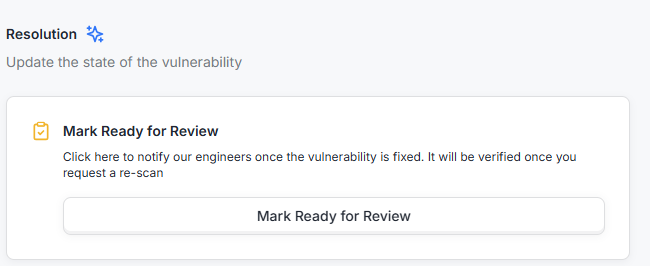
After fixing a vulnerability, click the Mark Ready For Review button under each item. Only vulnerabilities marked as under review will be considered in the rescan.
5. Submit the Request
If eligible, click Request Rescan to initiate the process.
Tracking Your Rescan
You can track the status of your rescan from the Pentest Details Page.
Scroll to the Rescan in Progress section to view the current status.
Once completed, this section will automatically move to Completed.
Note: Manual rescans typically take 3–9 working days, depending on the request queue and number of vulnerabilities submitted.
Note: For a detailed walkthrough of rescan rules, behavior, and available actions, see our Advanced Rescan Guide