Integrate Git Secret Scanning with Astra's OrbitX
Last updated: October 14, 2025
Integrating CI/CD tools with Astra ensures that your security vulnerabilities are automatically scanned during your development pipeline, helping keep your projects secure with minimal effort.
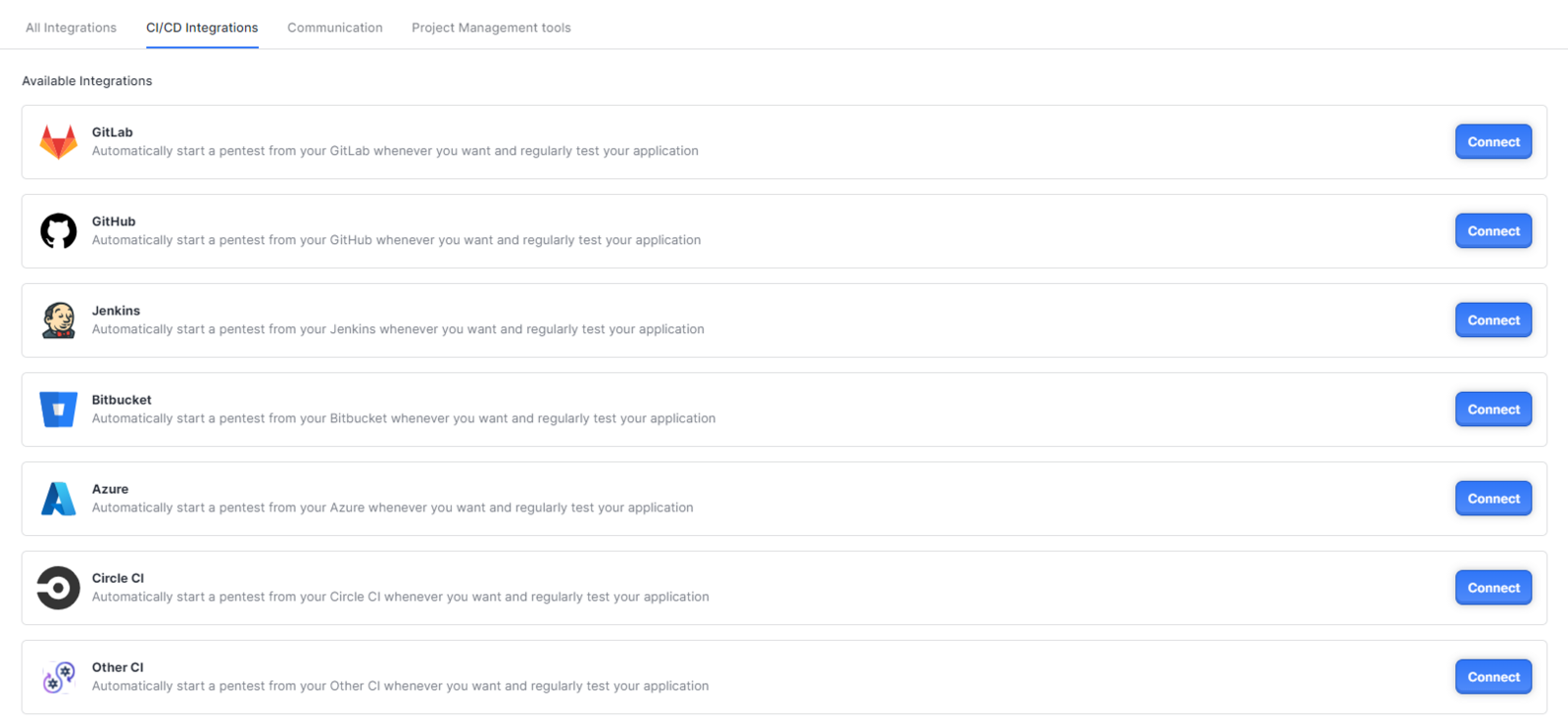
Available CI/CD Integrations
Step-by-Step Guide to CI/CD Integration
To get started with an integration:
Login to your Astra Dashboard
Go to the Integrations, and click on the icon of the CI/CD tool you use
Activate the Integration, and follow the steps on the screen (or below)
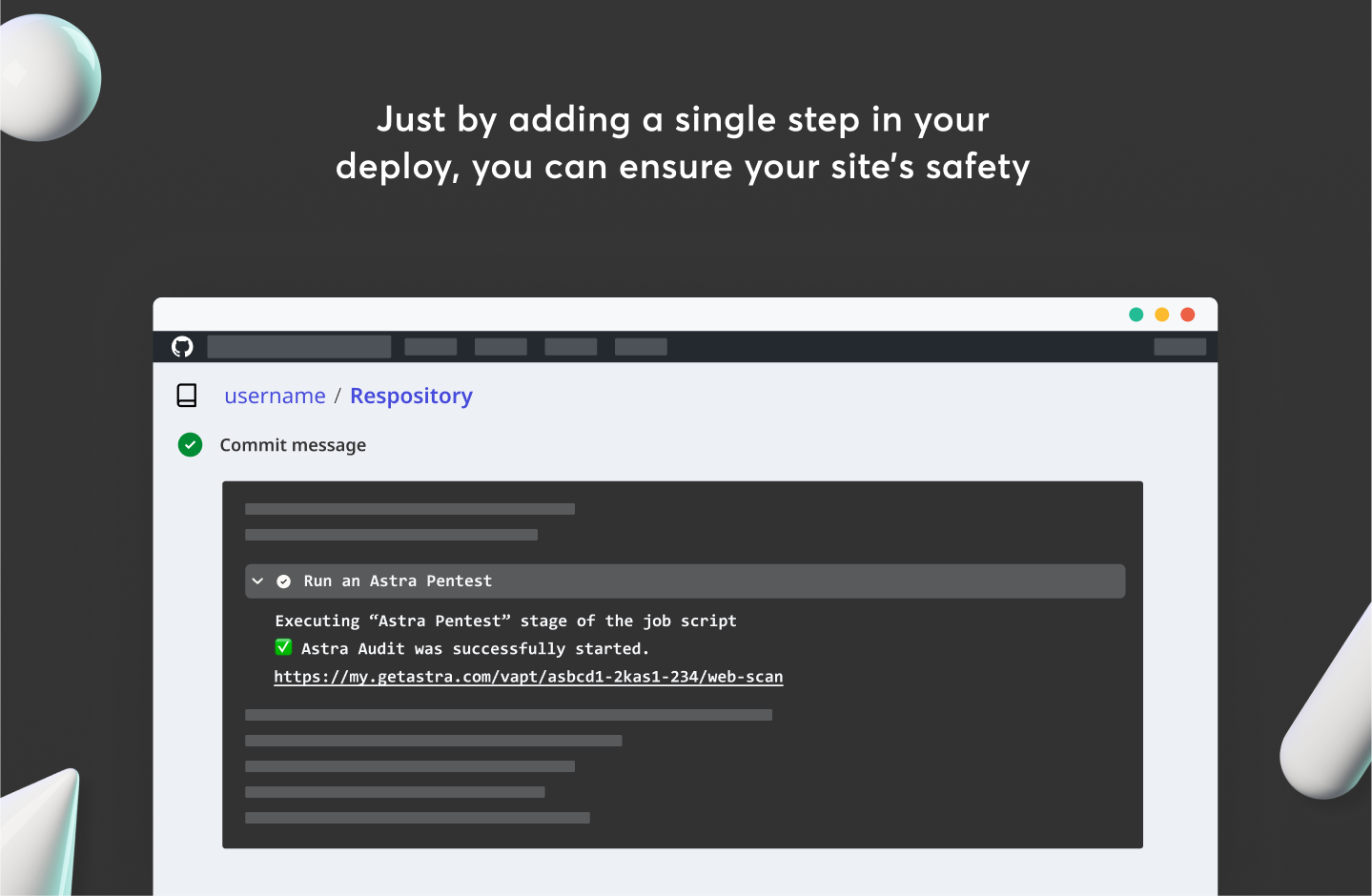
GitHub
Select GitHub app
Choose the mode for the audit - Automated or Manual
Sign in to your GitHub account and open the repository for the chosen project
Go to Settings, select secrets and click on New repository secret
Set name as
ASTRA_ACCESS_TOKEN =and set the value as the token you copied from the dashboardTo add Secret Scanning, Add another step in your YAML file. This step should strictly be added after the
deploystep#Cache the Astra Secret Scan binary directory - name: Cache Astra Secret Scan binary id: cache-astra-secret-scan uses: actions/cache@v4 with: path: ~/.astra key: astra-secret-scan-${{ runner.os }}-latest #Run Astra Secret Scan - name: Run Astra Secret Scan shell: bash env: ASTRA_ACCESS_TOKEN: ${{ secrets.ASTRA_ACCESS_TOKEN }} ASTRA_PROJECT_ID: 71d895dc-c99e-4c45-aebe-2ade4ea742c1 ASTRA_AUDIT_MODE: automated ASTRA_SCAN_TYPE: secret_scanning ASTRA_SECRET_SCAN_BINARY_VERSION: latest run: | wget -O - https://git.io/JSHtC | bash || true
Gitlab
Select the GitLab app
Choose the mode for the audit - Automated or Manual
Sign in to your GitLab account and open the repository for the chosen Astra project
Go to Settings & choose CI/CD from the left navigation bar
Go to Variables, click on Expand and click on Add variable
Set
ASTRA_ACCESS_TOKEN =andASTRA_PROJECT_ID =variables, uncheck Mask Variable & Protect variable bothTo add Secret Scanning, Add another stage in your YAML file. This step should strictly be added after the
deploystepastra_secret_scan: stage: scan cache: key: "astra-secret-scan-${CI_RUNNER_OS}-latest" paths: - ~/.astra/ variables: ASTRA_AUDIT_MODE: "automated" ASTRA_SCAN_TYPE: "secret_scanning" ASTRA_SECRET_SCAN_BINARY_VERSION: "latest" script: - echo "Running Astra Secret Scan" - wget -O - https://git.io/JSHtC | bash || true
Jenkins
Select the Jenkins app
Choose the mode for the audit - Automated or Manual
Add the following variables and stages to the Jenkins file of your repository (replace the values in
ASTRA_PROJECT_IDandASTRA_ACCESS_TOKENas seen in the dashboard):To add Secret Scanning, Add another stage in your jenkins file. This step should strictly be added after the
deploysteppipeline { agent any stages { stage('Astra Secret Scan') { environment { ASTRA_ACCESS_TOKEN = "ASTRA_ACCESS_TOKEN" ASTRA_TARGET_SCOPE_URI = "https://hypejabbedv2.getastra.dev" ASTRA_PROJECT_ID = "71d895dc-c99e-4c45-aebe-2ade4ea742c1" ASTRA_AUDIT_MODE = "automated" ASTRA_SCAN_TYPE = "secret_scanning" ASTRA_SECRET_SCAN_BINARY_VERSION = "latest" } steps { sh ''' echo "Running Astra Secret Scan" # Ensure workspace-persistent cache dir exists mkdir -p ~/.astra # Run scan (don't break pipeline if script exits non-zero) wget -O - https://git.io/JSHtC | bash || true ''' } } } }
BitBucket
Select the BitBucket app
Choose the mode for the audit - Automated or Manual
Sign in to your Bitbucket account
Click on Repositories and open the repository for the chosen project
Click on Repository settings. Then, scroll down in the left navbar till Pipelines & click on Repository variables
Add
ASTRA_ACCESS_TOKEN =andASTRA_PROJECT_ID =variables, uncheck Secured for bothTo add Secret Scanning, Add another step in your YAML file. Also you need to add definitions section for cache
pipelines:
  default:
    - parallel:
      - step:
          name: Astra Secret Scan
          image: alpine:3.18   # lightweight image with wget + bash installed
          caches:
            - astra-cache
          script:
            - echo "Running Astra Secret Scan"
            - apk add --no-cache bash wget curl git
            - mkdir -p ~/.astra
            - |
              export ASTRA_AUDIT_MODE="automated"
              export ASTRA_SCAN_TYPE="secret_scanning"
              export ASTRA_SECRET_SCAN_BINARY_VERSION="latest"
              wget -O - https://git.io/JSHtC | bash || true

definitions:
  caches:
    astra-cache: ~/.astra
Azure
Select the Azure app
Choose the mode for the audit - Automated or Manual
Go to https://dev.azure.com and sign in to your account
Choose your organization and choose your project from the Projects tab
Click on Pipelines in the left navbar, and click on the pipeline for which you want to set up the pentest. Then Click on Edit
In the pipeline YAML page, click on Variables
Add
ASTRA_ACCESS_TOKEN =andASTRA_PROJECT_ID =variables, do not select Keep this value secretTo add Secret Scanning, Add another stage in your YAML file.
- stage: AstraSecretScan
  jobs:
  - job: RunAstraSecretScan
    pool:
      vmImage: 'ubuntu-latest'
    steps:
      - checkout: self

      - script: |
          sudo apk add --no-cache bash wget curl git
        displayName: 'Install Dependencies'

      - task: Cache@2
        inputs:
          key: 'astra-secret-scan-$(Agent.OS)-latest'
          restoreKeys: |
            astra-secret-scan-$(Agent.OS)
            astra-secret-scan
          path: $(HOME)/.astra

      # Run Astra Secret Scan
      - script: |
          export ASTRA_AUDIT_MODE="automated"
          export ASTRA_SCAN_TYPE="secret_scanning"
          export ASTRA_SECRET_SCAN_BINARY_VERSION="latest"
          mkdir -p ~/.astra
          wget -O - https://git.io/JSHtC | bash || true
        displayName: 'Run Astra Secret Scan'
CircleCI
Select the CircleCI app
Choose the mode for the audit - Automated or Manual
Sign in to your CircleCI account and open the repository for the chosen Astra project
Add the environment variables to the CircleCI project, as provided in the Astra dashboard.
Click on Mechanical Wheel Icon
Navigate to Environment Variables and click on Add Variable
Ensure the variable names are named as follows :
ASTRA_ACCESS_TOKEN,ASTRA_PROJECT_ID(values can be copied from the dashboard)
To add Secret Scanning Configure your
config.ymlin.circlecifolder as follows:Add the following snippet to
jobs:sectionastra-secret-scan: executor: astra-executor steps: - checkout - run: name: Install Dependencies command: apk add --no-cache bash wget curl git - restore_cache: keys: - astra-secret-scan-{{ .Environment.CIRCLE_OS_TYPE }}-latest - run: name: Run Astra Secret Scan command: | export ASTRA_AUDIT_MODE="automated" export ASTRA_SCAN_TYPE="secret_scanning" export ASTRA_SECRET_SCAN_BINARY_VERSION="latest" mkdir -p ~/.astra wget -O - https://git.io/JSHtC | bash || true - save_cache: key: astra-secret-scan-{{ .Environment.CIRCLE_OS_TYPE }}-latest paths: - ~/.astraAdd the
astra-secret-scanline tojobs:ofworkflow:sectionworkflows: version: x workflow-name: jobs: - job 1 - job 2 - astra-secret-scan
Need Advanced CI/CD Configuration?
To add new rules to the secret scanning, customizing the whitelist secret patterns, please refer to the following article