Error: "Message cannot be delivered to the email address" when inviting a workspace member
Last updated: June 20, 2025
What This Article Covers
This article explains the common error "Message cannot be delivered to the email address" encountered when inviting a new workspace member. It details why this error occurs and provides a structured guide on how to resolve it, including troubleshooting steps and when to contact support.
Who Should Read This
This article is for workspace owners or administrators who are experiencing issues inviting new members to their Astra workspace and are encountering the "Message cannot be delivered to the email address" error.
Why This Matters
Successfully inviting new members is essential for team collaboration and managing access within your Astra workspace. Understanding and resolving this error efficiently ensures that you can onboard your team smoothly, maintain productivity, and avoid delays in accessing critical features.
Understanding the "Message cannot be delivered" Error
You may see the error message "Message cannot be delivered to the email address" when attempting to invite a new member to your team. This typically occurs if the email address cannot be verified or if it is blocked by email security systems.
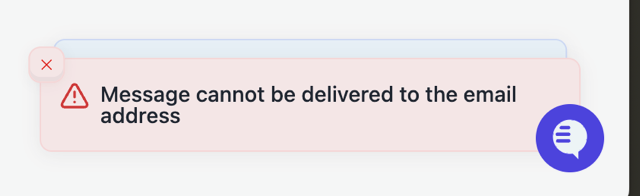
Affected Feature: Workspace Members → User Invitations
Why It Happens
This error is triggered when our email verification tool is unable to confirm the deliverability of the email address you're trying to invite. Common reasons include:
The recipient’s email server uses strict security filters (e.g., Mimecast, Proofpoint) that block automated verification checks.
The email address could not be verified at the time of the request due to a temporary issue or network delay.
The address may be inactive or invalid.
How to Resolve It
Here are a few things you can try to resolve the issue:
1. Wait and Try Again
Sometimes, the email verification fails due to temporary issues.
Wait for 5–7 minutes and try inviting the user again.
2. Confirm the Email Address
Double-check the email address for any mistakes.
Ensure there are no typos or extra spaces in the email address.
3. Clear Your Application Cache
Cached data can sometimes interfere with page functionality.
Follow the steps in How to clear application cache?
Refresh the page and try the invitation again.
4. Contact Support
If the issue persists after trying the above steps, please contact our support team.
Provide the email addresses you'd like to invite.
We will manually add the users to your workspace on your behalf.
Note: Users added by our support team will have restricted access initially. Workspace owners or admins can later adjust their role or access level as needed.
Important Notes
Some enterprise email systems may block automated verification or invite emails. You may need help from your internal IT team to allow emails from Astra.
We recommend reaching out to the user directly to confirm that their email system is not blocking external messages.
Need help? Raise a support ticket anytime from your Astra dashboard.