Overview of Company Management in Astra
Last updated: November 14, 2025
For organizations managing multiple workspaces, targets, and team members, Company Management in Astra provides a centralized way to view and control everything that belongs to your company - all in one place.
This feature is available exclusively for Enterprise customers. If you have access, you’ll see a new “Company”section on your Settings page. If you're on a non-Enterprise plan, this section will not be visible.
Understanding the Company Structure
With this new feature, Astra introduces a structured hierarchy to help Enterprise customers better organize their environments:
At the top is the Company – representing your entire organization.
Under a company, you can have one or more Workspaces, each possibly representing a different department, product, or business unit.
Within each workspace are Targets – the individual web apps, APIs, or cloud assets being secured.
This hierarchy ensures that security and visibility are scalable across teams, while still allowing for fine-grained control at every level.
Accessing the Company Settings
If your account is part of an Enterprise plan, head over to your Settings page. If the feature is enabled for you, you'll find a "Company" section there. From this view, you can manage high-level settings, workspaces, and users associated with your organization.
General Settings
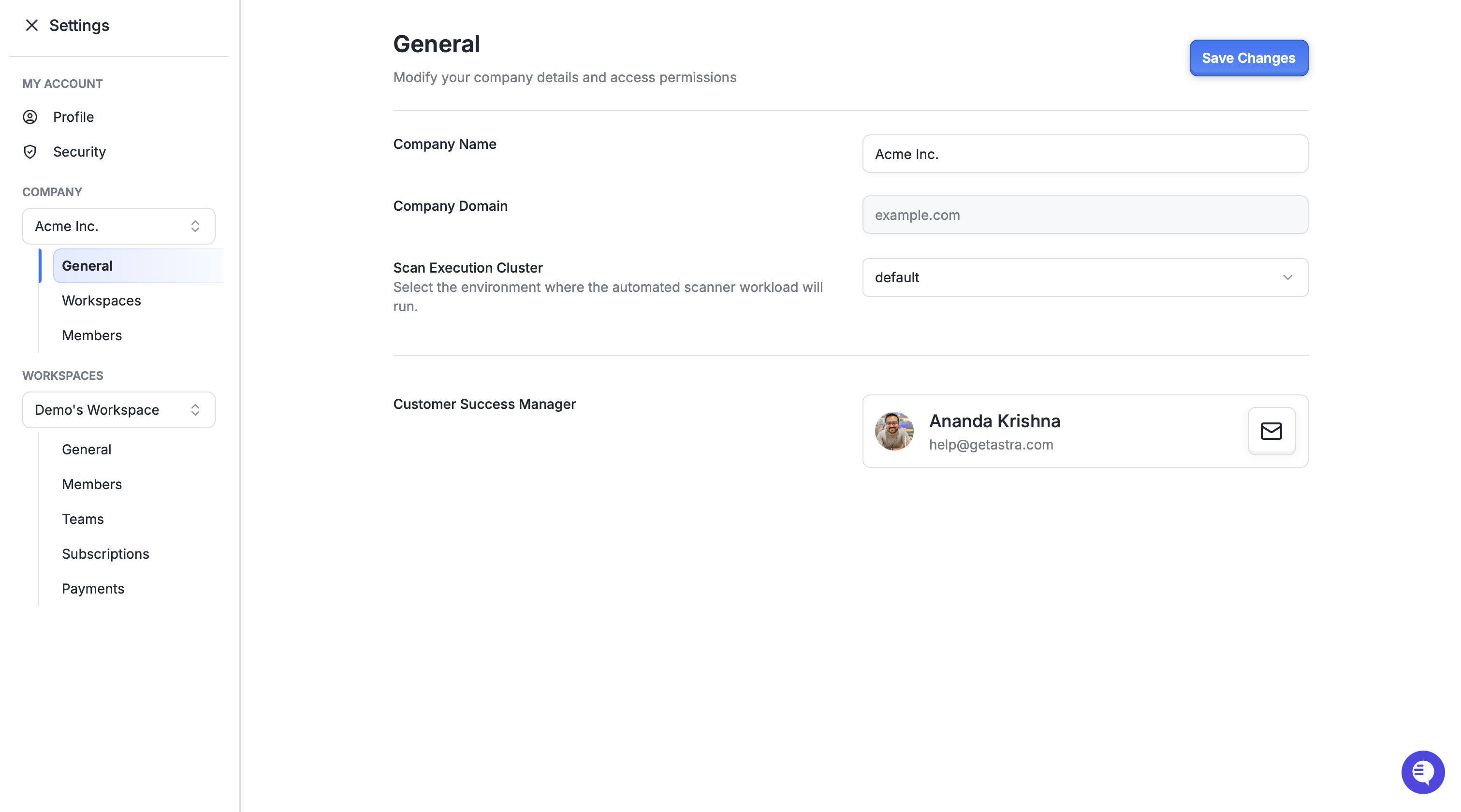
The General Settings tab gives you insight into key company-wide configurations:
Company Name: You can edit the name that represents your organization on Astra.
Email Domain: This displays the verified domain associated with your company. Astra uses this domain to group users and auto-link new signups.
Scan Execution Cluster: Enterprise customers are provided with dedicated scanning infrastructure, and this setting displays the cluster assigned to your account.
Customer Success Managers: See the dedicated Customer Success Managers (CSMs) assigned to your company. These are your go-to contacts for onboarding, support, and success planning.
Workspaces
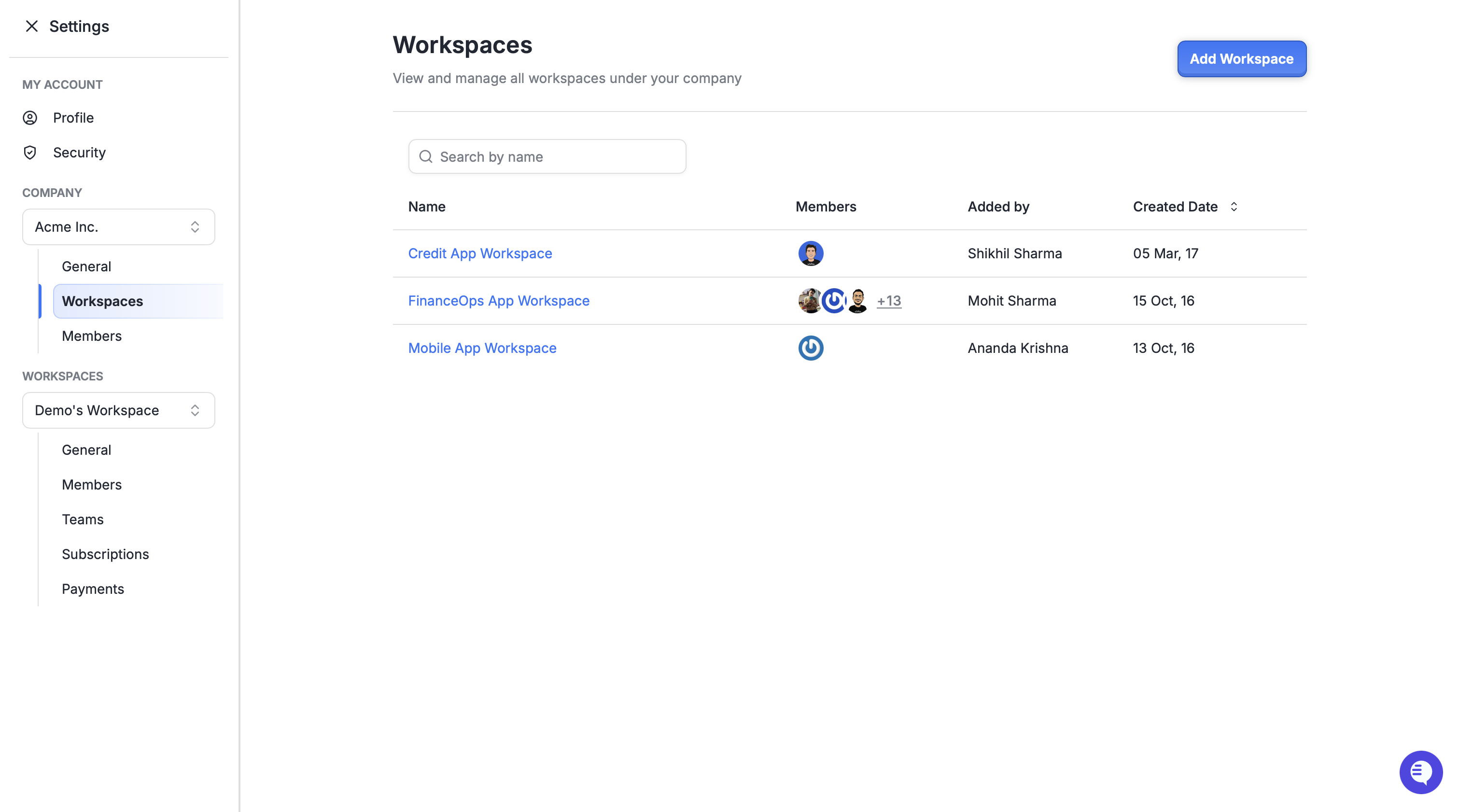
Under the Workspaces tab, you’ll see a list of all workspaces linked to your company. This includes:
Workspaces that were created directly by your team
Workspaces created by other users using your company’s email domain, even if those were created independently
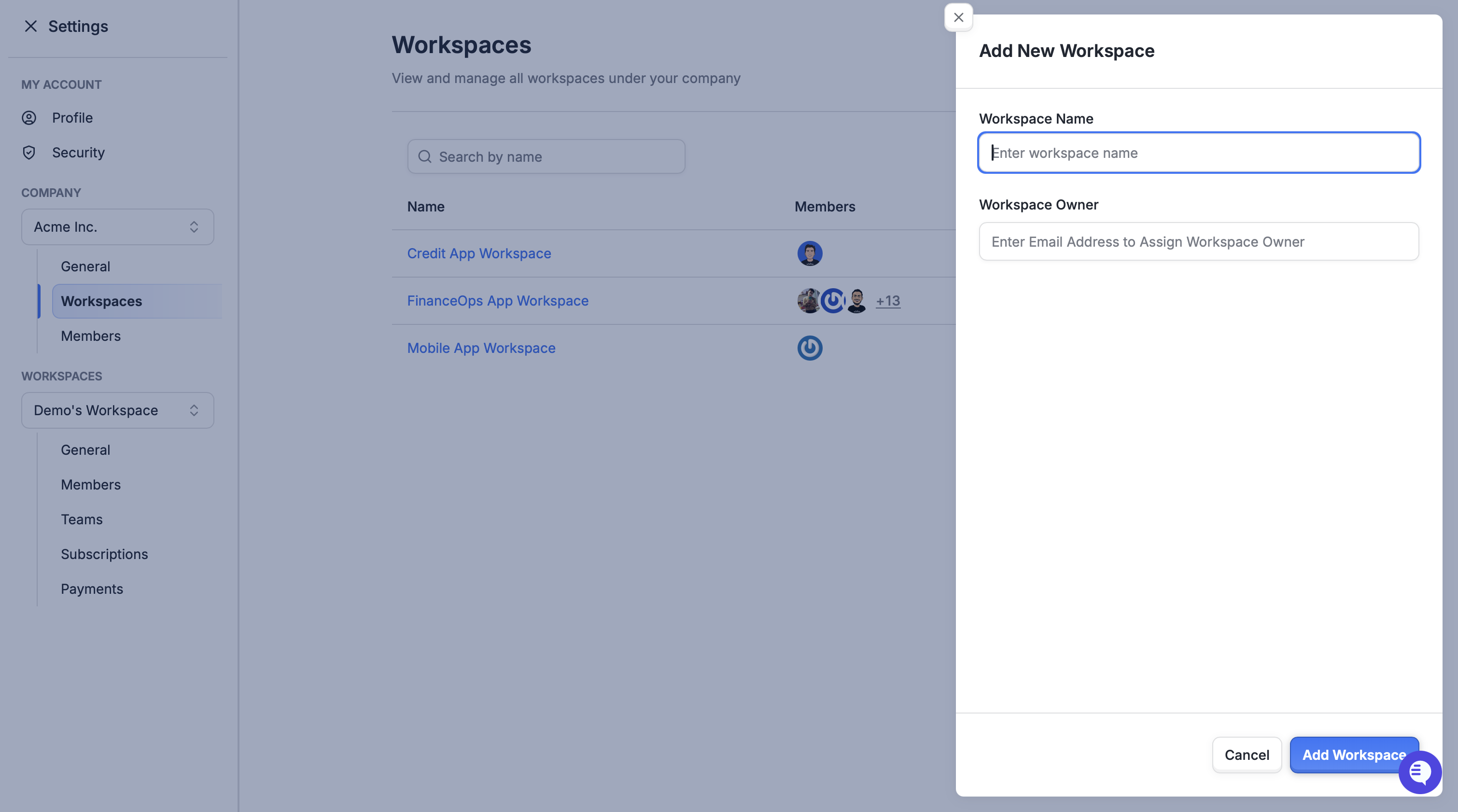
Option to add targets to a workspace
This ensures you always have visibility into what’s happening across your organization, even if a colleague signs up separately using their company email. Astra automatically links these workspaces to your company entity, and they will appear under the Company section.
Clicking on any workspace in the list will take you to its dashboard, allowing you to quickly switch between business units or teams and access their specific settings, targets, and security findings.
Enterprise customers on supported plans can now add targets to their workspaces directly from the Astra dashboard, without needing to contact support or your Customer Success Manager.
Only Company Owners and Company Admins have the ability to add new targets at the workspace level.
Company Members
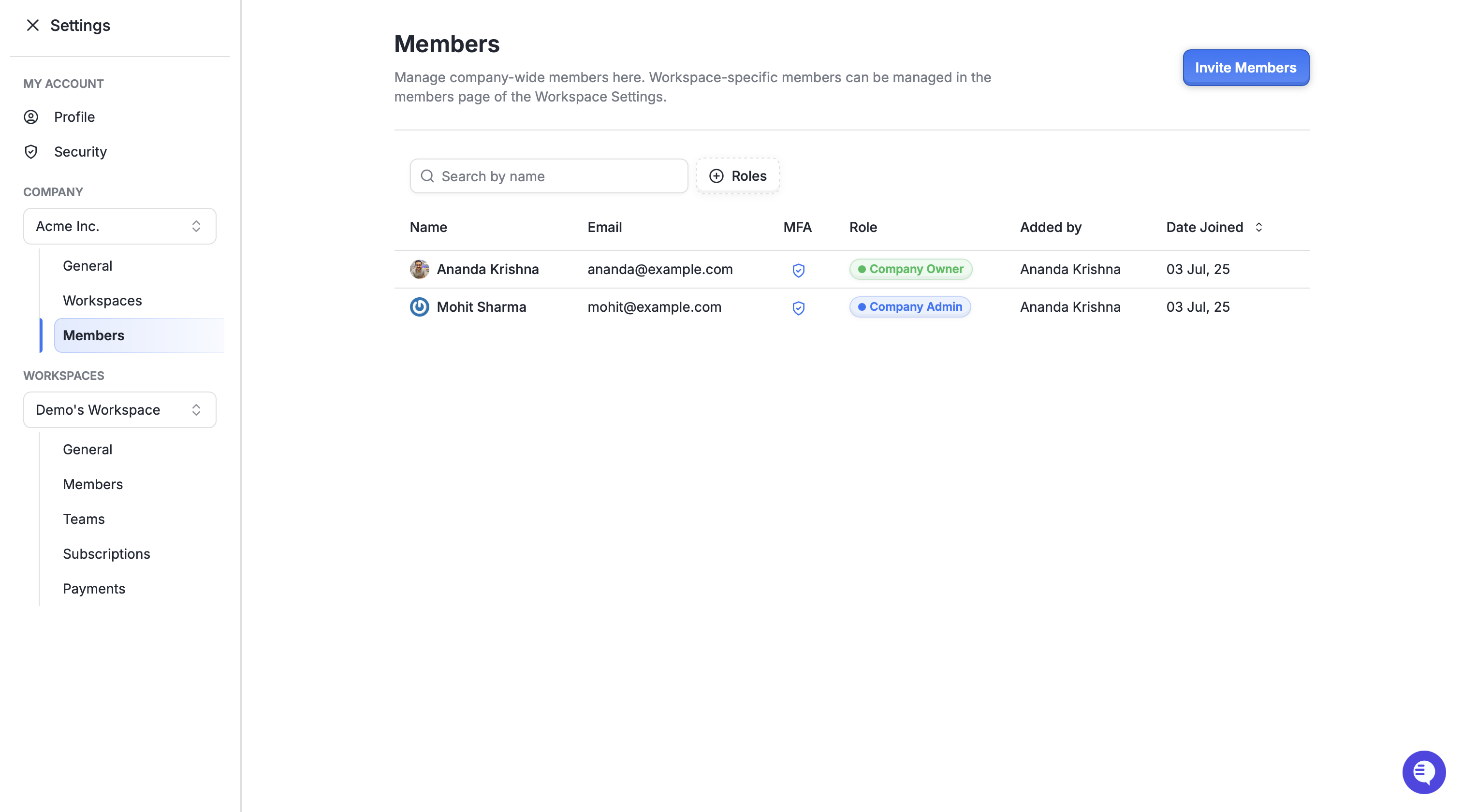
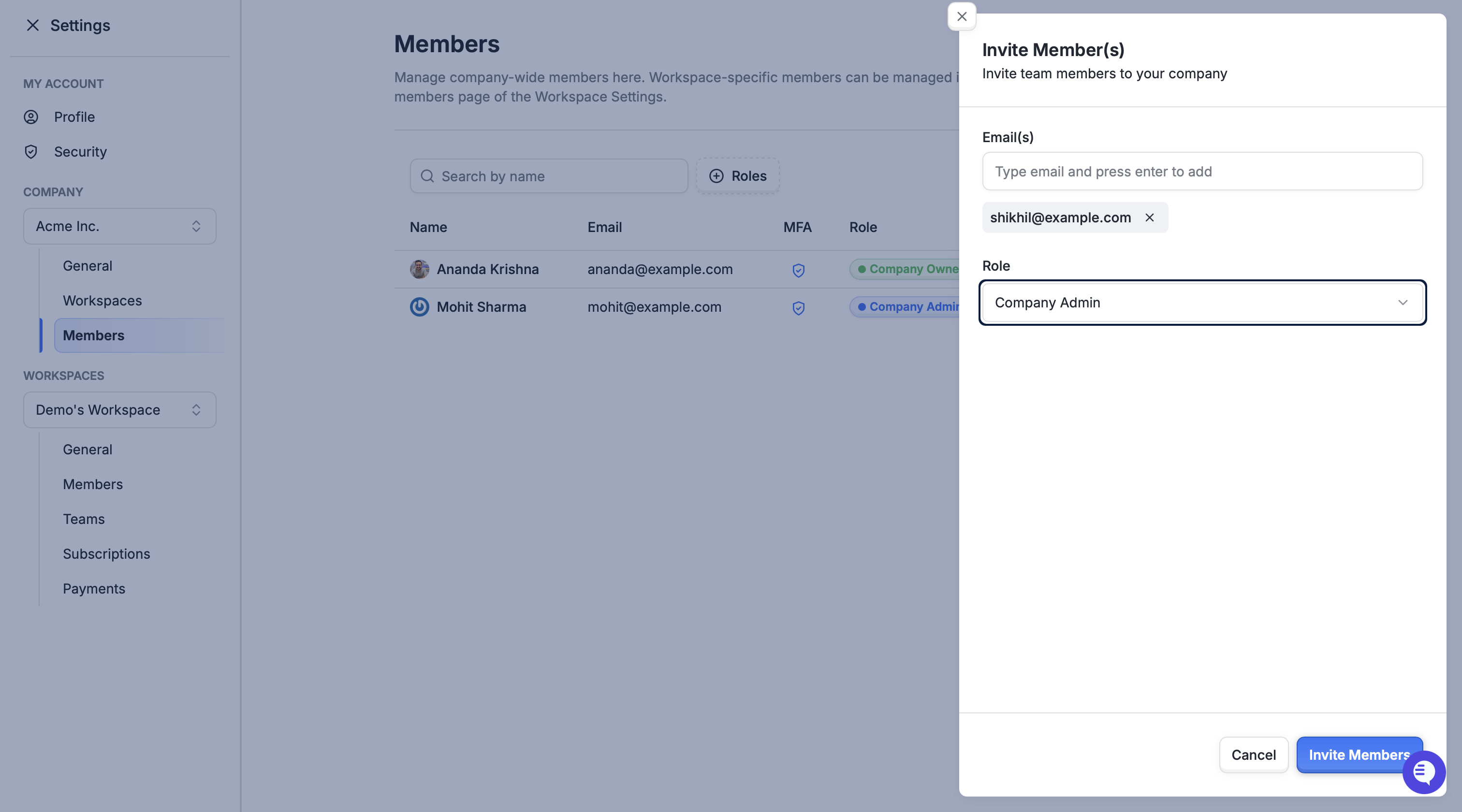
The Members tab allows you to manage users who have access at the Company level:
Company Owners can:
Add or remove Company Admins
Everything which a Company Admin can do
Company Admins can:
Access all workspaces and targets across the company
Manage settings across workspaces
Cannot add or remove company members
Company Read-Only Admins can:
View all workspaces and targets across the company.
Cannot add or remove company members.
All company-level users are listed here, including their roles. This view is useful for managing permissions across a large team.
When Should You Add a Company Member?
You should add someone as a Company Member (Admin or Owner) if they require access across all workspaces and targets associated with your company. This is especially useful for central security teams, leadership, or auditors who need complete visibility.
However, if a user only needs access to a specific workspace (for example, the marketing website or a product API), it's better to add them directly to that workspace or target. This keeps access tightly scoped.
Usage Page
The Usage page gives you a clear, real-time view of how your organization is utilizing its target quota across the platform.
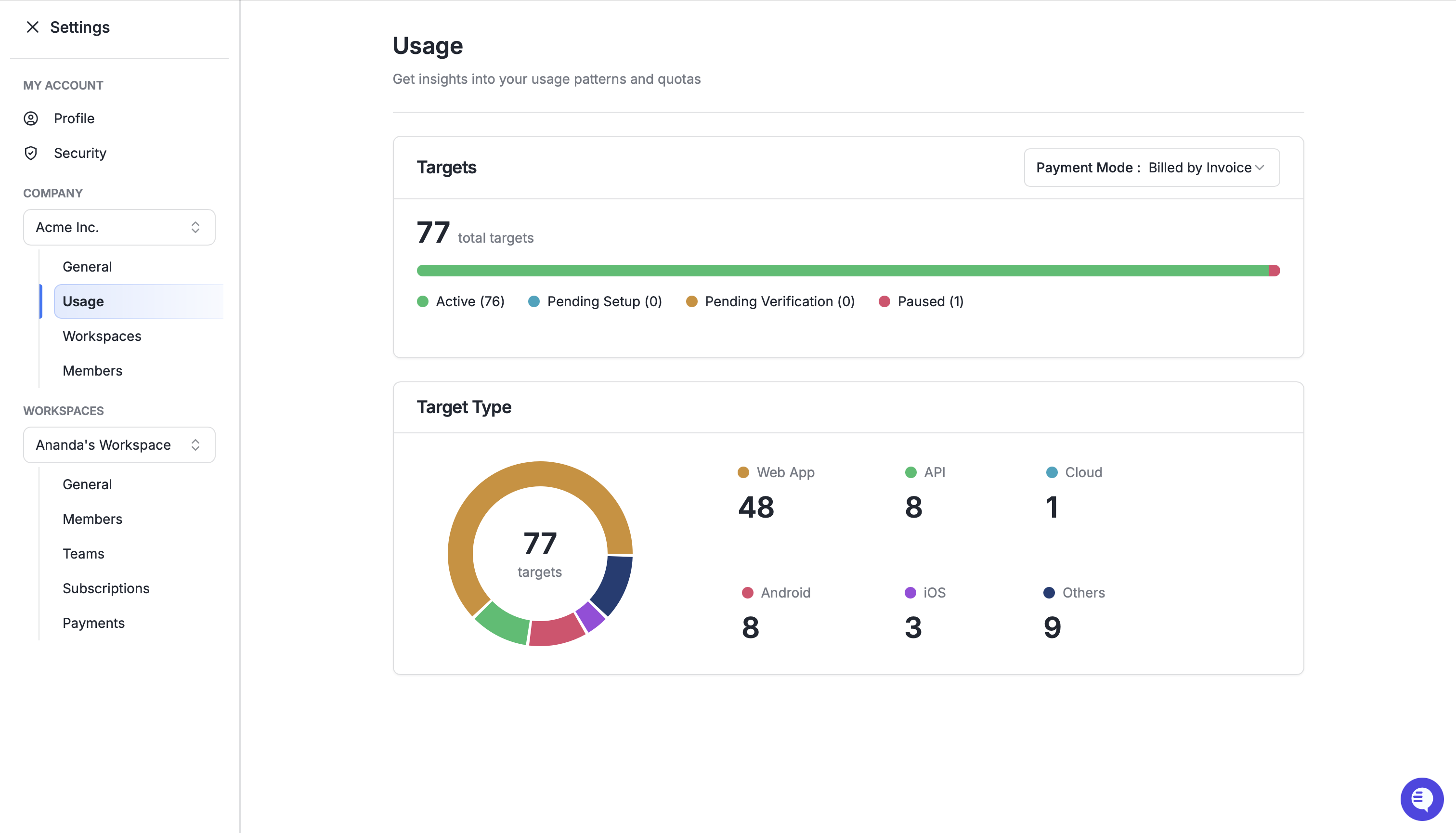
Target Quota Overview: Displays the total number of targets used to date, along with the maximum allowed targets for your company plan. A progress bar visually breaks this down into the different states of a target such as Active, Pending Setup etc.
Target Type Breakdown: A pie chart shows the distribution of targets based on their type such as Web App, API, Cloud, or others making it easier to understand where your resources are being allocated.
This page helps company admins and security leads keep track of usage limits, avoid hitting quotas unexpectedly, and make informed decisions on adding or managing targets more effectively.
Need Help?
If you don’t see the Company section but believe your account qualifies, or if you’d like help setting up your company structure, contact your Customer Success Manager or contact support.